


SNMP stands for Simple Network Management Protocol. It was created in 1988 as a standardized solution for collecting information and managing network devices. As a protocol, it quickly gained in popularity due to its ease of use and ability to scale to manage many devices and have significantly more information under management than other competing protocols.
Most every network equipment manufacturer supports SNMP on their network devices, some have a more complete implementation, and others have a limited amount of information available.
SNMP is primarily used to collect information on a network’s performance and operation like:
● Link status (up/down)
● Performance: Utilization of a link
● Dropped packets
● High CPU usage
● Low free memory
● Fan operation status
● Temperature
● Battery levels
● Toner levels in printers
SNMP can also be used to change a network device’s configuration. For example:
● Changing a link administrative status to UP or DOWN
● Change interface description
● Reboot a device
You will need a network device (switch, firewall, router) that supports the SNMP protocol, and a PC or server to do the query. You will also need software on the PC to make the SNMP query.
Most enterprise networking equipment supports SNMP. Most home networking equipment does not. You will have to check the documentation for each network device to determine its support.
SNMP needs to be enabled on networking devices, as it is typically disabled by default. Typically this means that you must login to the device (either through SSH or a web page on the device) and enable SNMP and then set credentials.
There are three primary versions of the SNMP protocol that are supported:
● V1 – This was the first version supported and is mostly deprecated. You may encounter rare devices that only support this version of the protocol, but they would be very old at this point.
● V2c – This is the most broadly supported version of the protocol. It includes additional features like the ability to do bulk queries of data. It improved error reporting and supported more data types like 64bit counters.
● V3 – This is the latest version, and supports improved security by adding usernames & passwords, encryption, message integrity validation, access control views.
If you are configuring a device to support v1 or v2c, you will need to set up a “community string.” This is a shared secret password that the device and your software will use to permit communications. Note: These “community strings” are plain-text, and can be viewed via packet capture software like Wireshark. As a result, they are not very secure. In addition, some devices do have a default community string set to “public,” and should be changed to something more secure.
If you are configuring v3, you will need to set up the following:● AuthProt – This is the authentication protocol that is used to verify that the SNMP communications are authenticated. Options are:
o No Auth – No authentication. Not recommended.
o MD5 – Deprecated except on really old equipment
o SHA1 – Widely supported, but being phased out in high security environments. Sometimes referred to as just “SHA”.
o SHA224 – Best choice for modern equipment
o SHA256 – Best choice for modern equipment
o SHA385 – Best choice for modern equipment
o SHA512 – Best choice for modern equipment
This authentication protocol accomplishes the following:
● Validates authentication that the user knows the secret.
● Validates message integrity and prevents message tampering.
● Anti-replay – Prevents repeating a previously used message.
● AuthPassword – This is the password used to authenticate the user
● PrivProt – This is the encryption or privacy strength. Some options for encryption are:
o No Priv – No privacy or encryption. Not recommended
o DES – 56bit encryption. Not recommended.
o AES – This may also be referred to as AES128. This is a good choice for modern equipment.
o 3DES – This is an old standard that is deprecated in favor of the AES protocols.
o AES192 – This is a better choice for modern equipment.
o AES192 Cisco – This is a better choice, but uses a localized keys so it does not follow the RFC standard the same way other non-Cisco equipment does.
o AES256 – This is the current best choice for modern equipment, but may not be supported on all devices.
o AES256 Cisco – This is the best choice on Cisco equipment, and uses localized keys.
● PrivPassword – This is the password used for encrypting the payload data
You can use software on a PC or server to communicate with the network device using SNMP. A basic test tool is PathSolutions PollDevice which can be downloaded here.
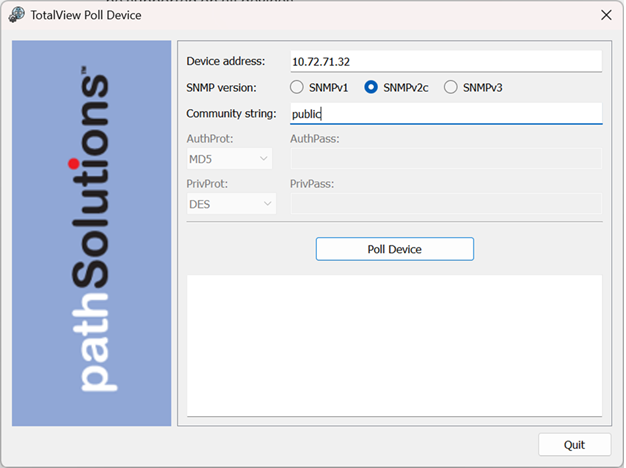
Now that you have communications established, you can start querying data. This can be done via network monitoring software like PathSolutions TotalView, SolarWinds Orion, Paessler PRTG, and Zabbix. These solutions will use SNMP to collect information and analyze network conditions.
If you want to view raw information about what a device has available, you can use a MIB Browser like PathSolutions Free MIB Browser.
A MIB is the Management Information Base or schema of the data available on a network device. Some devices support many MIBs, others only a few MIBs. A MIB file includes a listing of variables and their descriptions in ASN.1 format. This format allows for MIB browsers and other systems to import the MIB in machine readable format to understand the variables.
The following is defined inside a MIB file:
● MIB Definitions
● OID trees
● Object data types
● Protocol Data Units (PDUs)
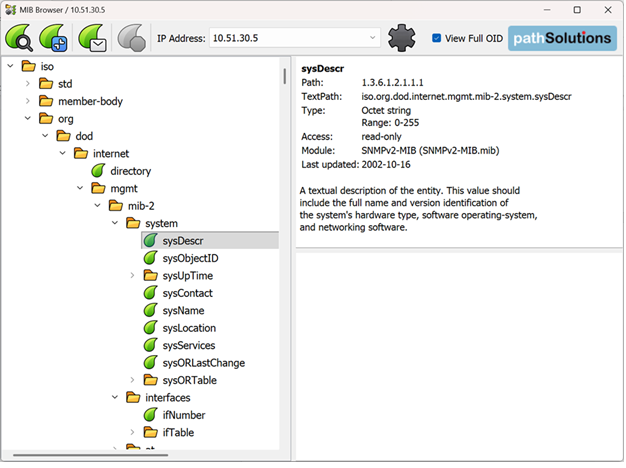
An OID stands for Object IDentifier and it references a specific variable on a device. For example:
1.3.6.1.2.1.1.1 References the sysDescr of the device, the system description
1.3.6.1.2.1.2.2.1.5.2 References the ifSpeed of interface 2 (the last octet) of the device
There are many different SNMP commands that can be used:
● GET – Read a specific OID’s value and return the result
● GETNEXT – Read the NEXT OID from the previous one and return the result
● GETBULK – Read the entire table from an OID and return all of the entries
● SET – Change an OID value (requires read-write community string)
● TRAP – Unsolicited message from the device to the manager. This is typically when there is an alert like a temperature exceeding a threshold, or a device reboot happens. In modern usage, TRAPs are not used as often, as syslog alerts tend to be preferred due to them being human readable.
● INFORM – Acknowledge a trap
● RESPONSE – This is the response from all GET/GETNEXT/GETBULK/SET requests
● REPORT – Used in SNMP v3 to report security problems
SNMP is very powerful, as there are tens of thousands of different OIDs (variables) available to query on a typical device. With most monitoring software, you do have to plan what values to query and how to interpret the results, and then build visibility into the network so you can know what’s happening.
PathSolutions TotalView automatically queries critical information from network devices and interprets the results to produce plain-English answers to network faults. This means that configuration is quick and easy, and you can spend your time solving problems instead of digging through OIDs and manually trying to interpret what happened.
info@pathsolutions.com
©2024 PathSolutions Inc. All rights reserved.